

In today’s digital education environment, schools across India rely heavily on ERP systems to manage attendance, fees, examinations, communication, and academic records.
When login problems occur, it can disrupt the daily workflow of students, teachers, and administrators. Understanding how to troubleshoot school ERP login issues is essential for ensuring uninterrupted access to important school operations.
Login errors in school management systems are common and usually occur due to incorrect credentials, browser problems, server downtime, or authentication failures. By following a systematic approach, schools can quickly identify the root cause and restore access.
This guide explains practical steps and solutions based on common issues reported in leading school ERP platforms and support portals in 2026.
Why Is the School ERP Login Not Working for Students, Teachers, or Admin?
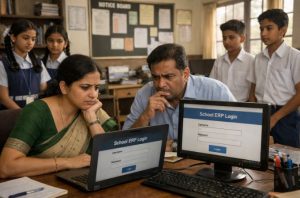
A school ERP login problem can arise from multiple sources. Students may face difficulty accessing their portal during examination periods, while teachers may encounter issues when updating attendance or uploading marks. Administrators may also experience restricted access due to role based permissions.
Common Reasons Include
- Incorrect username or password
- Account locked after multiple failed attempts
- Server not responding
- Authentication or session timeout errors
- Internet connectivity issues
Most modern school ERP systems are cloud based. If the internet connection is unstable, the login page may fail to load properly. In some cases, login attempts may redirect users back to the homepage without displaying a clear error message. This usually indicates session expiry or a backend validation issue.
Schools should first identify whether the issue is user specific or system wide. If multiple users report the same problem simultaneously, the issue may be related to server maintenance or temporary downtime.
Are Incorrect Login Credentials or Password Reset Errors Causing the Issue?
One of the most frequent causes of school ERP login issues is incorrect credentials. Many users mistakenly enter outdated passwords or incorrect usernames, especially after a recent password update.
Common Credential Related Errors
Users may encounter messages such as invalid username or password, account locked, or OTP verification failed. These errors usually indicate:
- Typing mistakes
- Caps lock enabled
- Password recently changed
- Incorrect mobile number linked for OTP
When users select the forgot password option, they must ensure that the registered email or mobile number is active. If the OTP is not received, it could be due to network delays or an incorrect contact detail stored in the system.
School administrators should regularly update user records and encourage strong password practices. Resetting the password through the official portal is always recommended instead of sharing credentials informally.
How to Troubleshoot School ERP Login Issues? – Step-By-Step
A structured troubleshooting process helps resolve most login errors quickly. Below is a simplified step by step approach that schools can follow.
Step 1: Check Internet Connectivity
Ensure the device is connected to a stable internet connection. Try opening other websites to confirm connectivity.
Step 2: Verify Login Credentials
Re-enter the username and password carefully. Confirm that caps lock is turned off.
Step 3: Clear Browser Cache and Cookies
Outdated cache files may prevent proper login authentication. Clearing cache often resolves unexpected login behaviour.
Step 4: Try a Different Browser or Device
Browser compatibility issues are common. Switching from an outdated browser to an updated version can fix the issue.
Step 5: Check for Server Announcements
During maintenance periods, ERP systems may temporarily restrict access.
Step 6: Contact Technical Support
If none of the above steps work, raising a support request with complete error details is advisable.
This step by step approach ensures systematic troubleshooting without confusion.
Is Browser Compatibility or Cache Creating School ERP Login Errors?

Browser related issues are often overlooked. Many login problems occur because the browser version is outdated or overloaded with temporary files.
Signs of Browser Issues
- Login page not loading properly
- Page refreshing automatically after entering credentials
- Buttons not responding
- Blank dashboard after login
Clearing cache and cookies removes stored session data that may conflict with updated ERP configurations. Schools should recommend using updated versions of browsers such as Chrome, Edge, or Firefox.
Mobile login problems may also differ from desktop issues. In some cases, the ERP mobile application may require an update from the app store. Keeping both browsers and apps updated ensures compatibility with security patches introduced in 2026 ERP platforms.
Could ERP Server Downtime or Database Connectivity Issues Be the Reason?
When login issues affect a large number of users simultaneously, the problem may be server related. Cloud based school ERP systems rely on central servers and database connections.
Common Server Related Problems
| Issue Type | Possible Cause | Recommended Action |
| Server not responding | Temporary downtime | Wait and retry after some time |
| Database error | Backend connectivity issue | Inform technical team |
| Session timeout | High traffic load | Refresh and login again |
| Maintenance notice | Scheduled update | Follow official communication |
Server downtime is usually temporary and resolved by the technical team. Schools should monitor official notifications before assuming a technical fault on the user side.
Database connectivity issues may also occur during high usage periods such as result publication days. In such cases, patience and retrying after some time often resolves the problem.
How Can Schools Prevent Frequent School ERP Login Problems?
Prevention is better than repeated troubleshooting. Schools can reduce login related complaints by implementing structured digital practices.
Preventive Measures
- Conduct regular password awareness sessions
- Ensure accurate mobile and email records
- Update ERP software regularly
- Monitor server performance
- Provide clear login instructions to new users
IT administrators should also monitor unusual login attempts to prevent account lockouts. Secure login systems with role based permissions enhance both security and user experience.
By maintaining updated infrastructure and providing user training, schools can minimise disruptions and improve system reliability.
When Should Schools Contact School ERP Technical Support?

Technical support should be contacted when basic troubleshooting fails. Schools must provide complete information such as error message screenshots, user role, device details, and time of occurrence.
Situations Requiring Support
- Continuous login failure after password reset
- Multiple users unable to access the portal
- Repeated account locking
- Suspicious login activity
Professional ERP providers offer structured support systems that handle login authentication, server monitoring, and database management efficiently. Prompt communication ensures faster resolution and minimal academic disruption.
Conclusion
Understanding how to troubleshoot school ERP login issues empowers schools to maintain uninterrupted digital operations. Most login problems are caused by simple factors such as incorrect credentials, browser compatibility, or temporary server downtime.
By following a systematic troubleshooting approach and implementing preventive measures, schools can significantly reduce login related disruptions.
In 2026, as educational institutions increasingly depend on cloud based ERP systems, timely technical support and proper user awareness remain crucial. A well-managed school ERP environment ensures smooth communication, efficient administration, and enhanced academic productivity.
FAQs
What should users do if the school ERP OTP is not received during login?
Users should verify their registered mobile number, check network connectivity, and wait for a few minutes before requesting a new OTP.
How can schools handle multiple failed login attempts in ERP systems?
Schools should temporarily lock the account for security and guide users through the official password reset process.
Does internet speed affect cloud based school ERP login performance?
Yes, slow or unstable internet connections can delay authentication and prevent proper dashboard loading.
Can mobile app login issues differ from web portal login errors?
Yes, mobile applications may require updates or permission settings that differ from browser based login portals.
How often should school ERP passwords be updated for security?
Passwords should ideally be updated every three to six months to maintain account security and prevent unauthorised access.